 Ελληνικά
  English
 Everest Cast: Setting up your station step by step, channels, AutoDJ, DJs, music, schedule and jingles
14881 viewsThis guide takes you from your first login to having your station playing in Everest Cast: station details, channels, DJs, music, schedule and jingles.
You log in to Everest Cast with Login to Panel on the service page (see Everest Cast: First steps).
Step 1: Station details
The first time you log in, your station isn't set up yet. At the top of the panel, next to the START/STOP buttons, click Edit Server Details. Fill in the Title, Music genre, URL and Description and click Save. Then restart with STOP and START.


Step 2: Channels
At the bottom of the main page are your station's channels, the streams your listeners tune in to. You can add channels with a different format (e.g. MP3, AAC), a different bitrate and their own listener limit.
Note: the total listeners across all channels can't exceed your package's listener limit. Otherwise you'll see an error message.


Step 3: AutoDJ and DJs
Every station starts with the AutoDJ DJ, which plays your music when no one is broadcasting live.
- For a new DJ, click DJ in the menu and then Add DJ. Add an image and a name, tick Active, set a password and click Add DJ.
- Click Edit on a DJ to change it and to see the connection details for live broadcasting. See Everest Cast: Live broadcasting.
- Priority: the connected DJ with the highest priority goes on air. AutoDJ always has the lowest. To change the order, drag the DJs in the list.

Step 4: Music
- Go to Playlists.
- Click Add files (or the + next to a playlist) and drag your files into the window.
- To add them to a playlist, select them and click Add selected files to playlist. For a new playlist, click New playlist.
Good to know: everything you upload goes into the All music playlist. It plays by default and can't be deleted.
For many files at once, see Everest Cast: Uploading songs via FTP. See also the video in Everest Cast: Uploading songs and enabling AutoDJ.

Step 5: Schedule
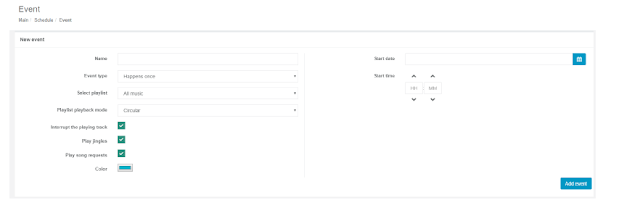
Go to Schedule and click New event (or click an hour on the calendar). In the event you set:
- Name and Event type: one time or weekly.
- Which playlist plays, and whether it loops (Circular) or plays once.
- Interrupt the playing track: cuts what's playing so the event starts right away.
- Play jingles / Play song requests: whether jingles and listener requests play while the event runs.
- Start relay: relay another station at this time.
Click Add event to save it.

Step 6: Jingles
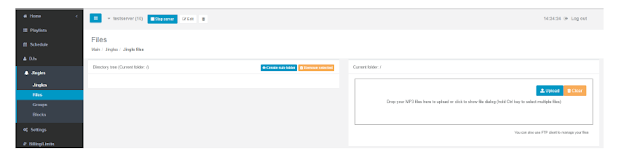
- Upload your jingles under Jingles → Files.
- Under Jingles → Jingles, click Add jingle and choose when it plays: Hourly, Daily, Between tracks, Before listener request or At playlist start.
- Optionally enable Mix jingle (plays over the song) or Interrupt playing track.
- Groups: you sort jingles into categories, and can have a random jingle from a group play.
- Blocks: a start jingle, a playlist track and an end jingle that play together without interruption, on a day and time you set (Add new block).
Jingles apply right away, without a restart.


Finally: start your station
Click START. If everything is right, your station starts playing.