 Ελληνικά
  English
 Centova Cast: Enabling AutoDJ, uploading music and creating a playlist
14504 viewsAutoDJ plays music on your station automatically, from songs you've uploaded, when you're not broadcasting live. In this guide you enable it, upload music, create a playlist and start your station.
Before you start, prepare your songs: Centova Cast: Preparing and uploading songs.
A. Enabling AutoDJ
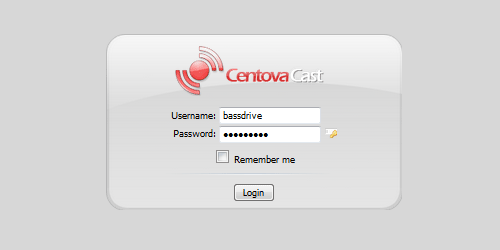
- Log in to Centova Cast. On the service page in the Client Area, click Login to Panel (see Centova Cast: First steps).
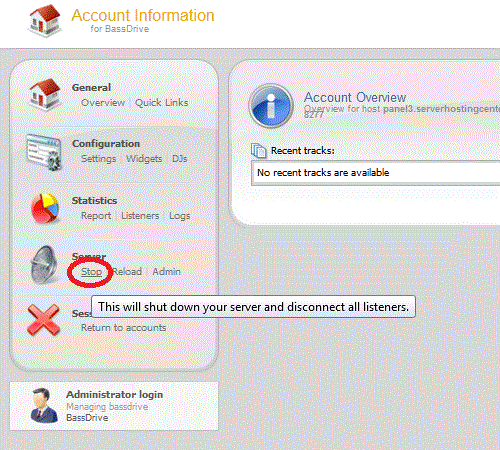
- Stop the server. To change the AutoDJ setting, the server must be stopped. Click Stop in the left menu.
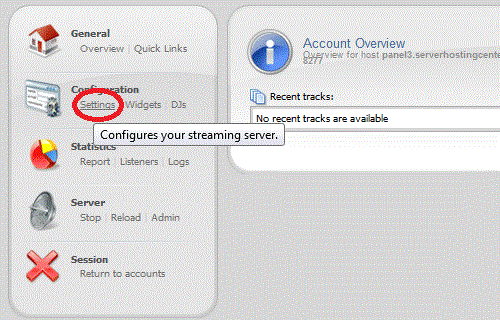
- Under Configuration, click Settings.
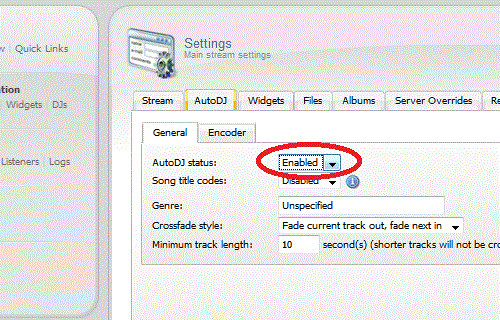
- Click the AutoDJ tab.
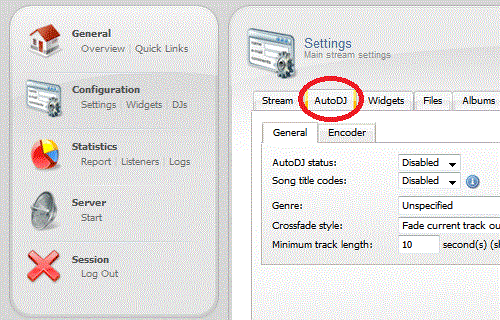
- Change the AutoDJ status to Enabled.
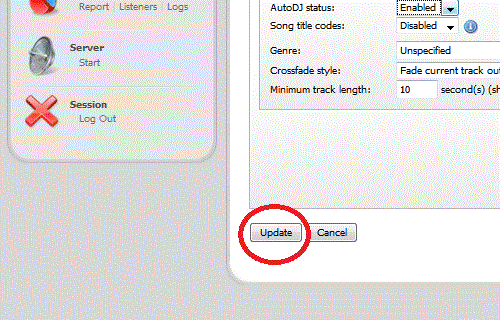
- Click Update at the bottom of the page. The AutoDJ options then appear in the menu.
B. Uploading music
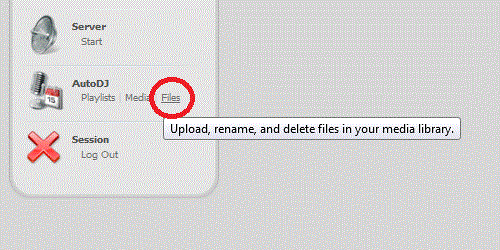
- Under AutoDJ, click Files.
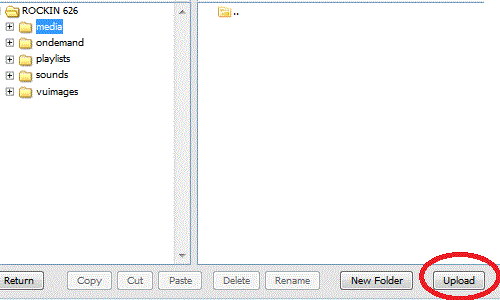
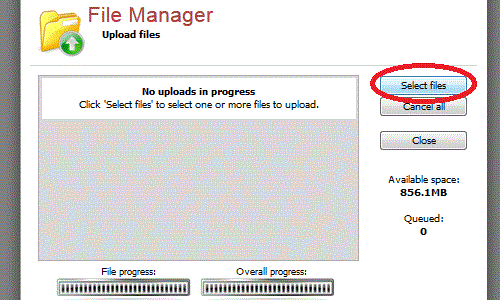
- Make sure the media folder is selected at the top left. At the bottom of the page, click Upload.
- Click Select Files, choose the MP3 files on your computer and click Open. The upload starts. Centova Cast only accepts MP3 files.
C. Creating a playlist
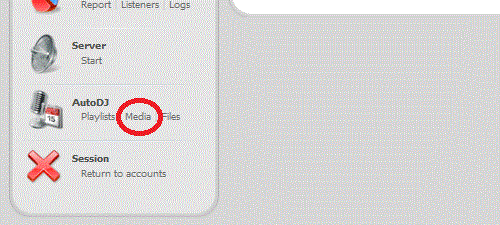
- When the upload finishes, click Back at the bottom left to return to the main menu. Under AutoDJ, click Media. This is your library.
- Click an artist. Their albums appear on the right, and when you click an album its songs appear below. Select songs and drag them to the left, onto the playlist.
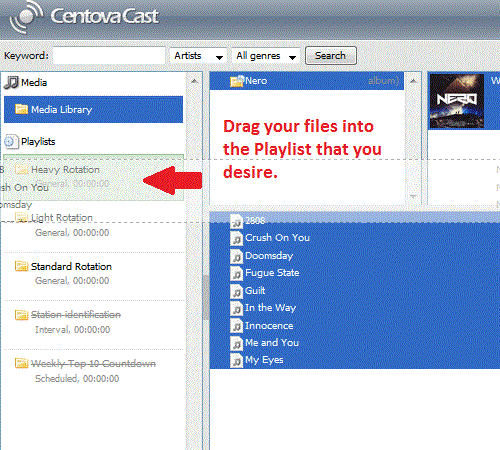
Important: disable every playlist that has no songs. Right-click it and click Disable.
To create, change or manage your playlists, click Manage Playlists and then Edit next to the playlist you want.
D. Starting your station
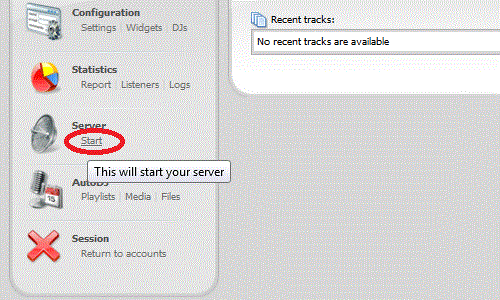
- Click Back at the bottom left. Under Server, click Start. Your music starts playing on the internet.
Checking
On the service page in the Client Area, click Refresh under Usage statistics. Status should be Online. Use the player in the Station section to hear what's playing.
If your station isn't playing, check that the playlist has songs and is enabled, and that empty playlists are disabled. If it still doesn't play, open a support ticket.